Access Control & PBAC Governance
VDA enforces a Policy-Based Access Control (PBAC) framework that replaces rigid, all-or-nothing database grants with fine-grained, attribute-aware security policies across datasources, tables, and individual columns.
1. The PBAC Policy Model
Every access decision is governed by standard 4-tuple policy rules:
$$\text{Policy Rule} = \langle \text{Role}, \text{Action}, \text{Scope}, \text{Effect} \rangle$$
graph TD
    Rule["Policy Rule"]
    Rule --> Role["Role (e.g. DataAnalyst, RiskOfficer)"]
    Rule --> Action["Action (data:read, metadata:read, *)"]
    Rule --> Scope["Scope (datasource:*, dataset:*, column:*)"]
    Rule --> Effect["Effect (ALLOW or DENY)"]
Core Security Invariants
- Explicit Deny Dominance: Any matching
DENYrule overrides allALLOWrules regardless of hierarchy. - Container Inheritance: An
ALLOWrule ondatasource:retail_bankinggrants implicit access to all datasets within that datasource, unless overridden by a childDENY. - Column-Level Restriction: An explicit
DENYrule oncolumn:retail_banking.transactions.customer_ssnremoves that column from query results, previews, and SQL ASTs while leaving non-restricted columns accessible. - Action Implication: Granting
data:readordata:queryautomatically implies visibility formetadata:read.
2. Managing Role Permissions in the Web UI
Navigate to Access Management from the sidebar (requires Administrator or Security Steward privileges).
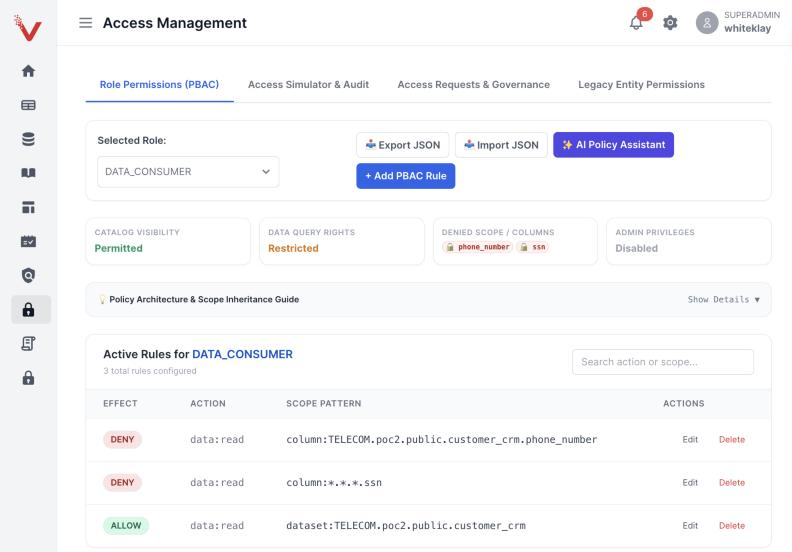
Adding a Rule
- Click + Add PBAC Rule.
- Select the Action (
metadata:read,data:read,data:query,admin:*, or*). - Choose the Scope Type:
- Datasource: Apply across an entire database connection.
- Dataset / Table: Apply to a specific table or view.
- Column: Use the Interactive Column Picker to select columns from live schema metadata.
- Select the Effect:
ALLOWorDENY. - Click Save Policy.
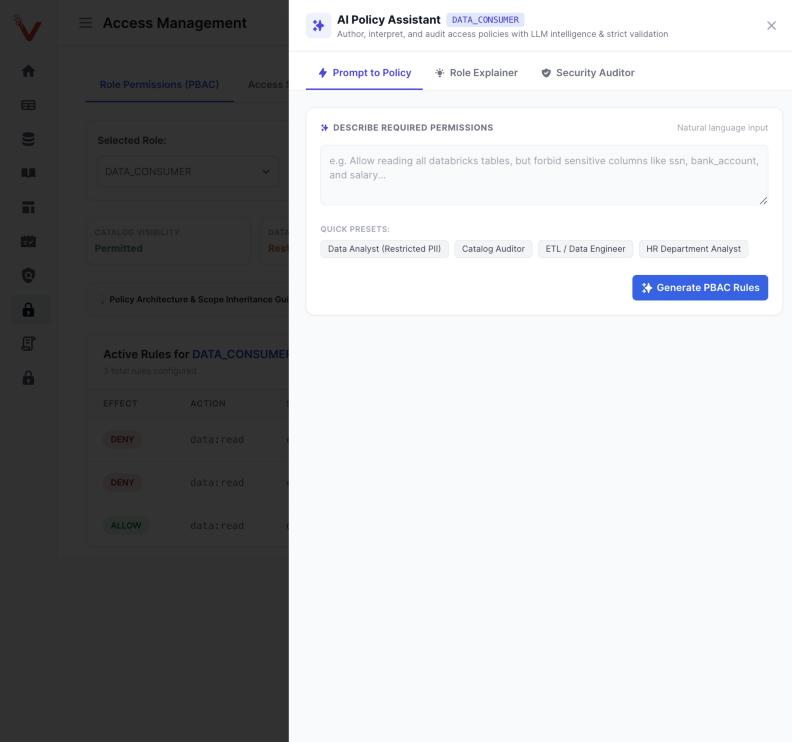
AI Policy Assistant
Click AI Policy Assistant to author and review policies with an LLM, always checked by a strict grammar validator. It has three tabs: Prompt to Policy (describe the permissions you want in plain English and generate PBAC rules, or start from a quick preset), Role Explainer, and Security Auditor.
3. Effective Access Profile Summary
The Effective Access Profile card summarizes what a role can do at a glance: - Catalog Visibility: Total accessible datasources and schemas. - Query Rights: Databases where interactive SQL querying is permitted. - Denied / Masked Columns: Complete count of columns stripped or masked for this role. - Administrative Privileges: Flag indicating whether the role can create connectors or edit policies.
4. The Permission Simulator
Test and audit access rules before deploying them to production users:
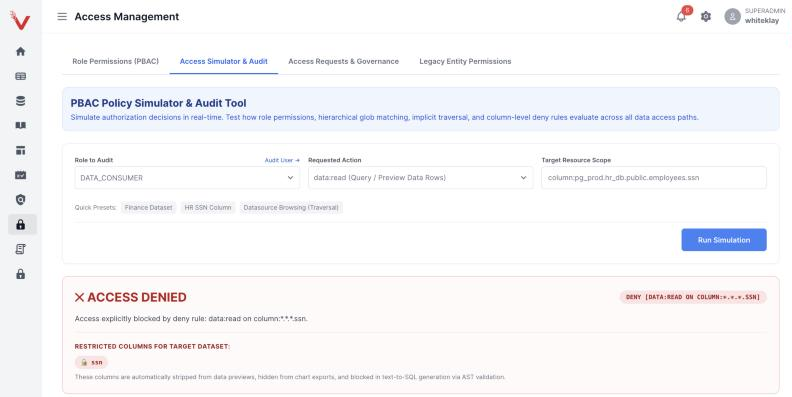
- Click the Access Simulator & Audit tab.
- Choose Simulate by Role (e.g.
JuniorAnalyst) or Simulate by User (e.g.john.doe@company.com). - Enter the test evaluation parameters:
- Action:
data:read - Scope:
dataset:retail_banking.transactions - Click Run Simulation.
- The simulator displays:
- Decision:
PERMITTEDorDENIED. - Winning Rule: The exact policy rule that triggered the decision.
- Masked Columns: List of columns that will be redacted if the user queries this table.
- Evaluation Trace: Full step-by-step breakdown of how deny dominance and container inheritance were evaluated.