VDA User Guide: Getting Started
The Virtual Data Assistant (VDA) user portal provides a unified web experience for exploring, analyzing, governing, and integrating enterprise data assets.
graph LR
    Login["1. SSO Login"] --> Nav["2. Central Workspace"]
    Nav --> Cat["Data Catalog"]
    Nav --> SQL["Text-to-SQL Studio"]
    Nav --> Lin["Lineage DAGs"]
    Nav --> SSM["Schema Mapping"]
    Nav --> GX["Data Quality"]
    Nav --> PBAC["Access Control"]
1. Authentication & Single Sign-On (SSO)
- Open your enterprise VDA portal URL in a supported web browser (Chrome, Firefox, Edge, Safari).
- Click Sign in with Enterprise SSO to authenticate via your corporate identity provider (Keycloak / Okta / Azure AD).
- Upon authentication, VDA initializes your session with your corporate roles and evaluates your effective permissions using the Policy-Based Access Control (PBAC) engine.
[!NOTE] All actions in the VDA portal are strictly filtered by your effective role permissions. If your role does not have permission to view a datasource or query a table, those resources will be hidden or masked automatically.
2. Navigating the Workspace
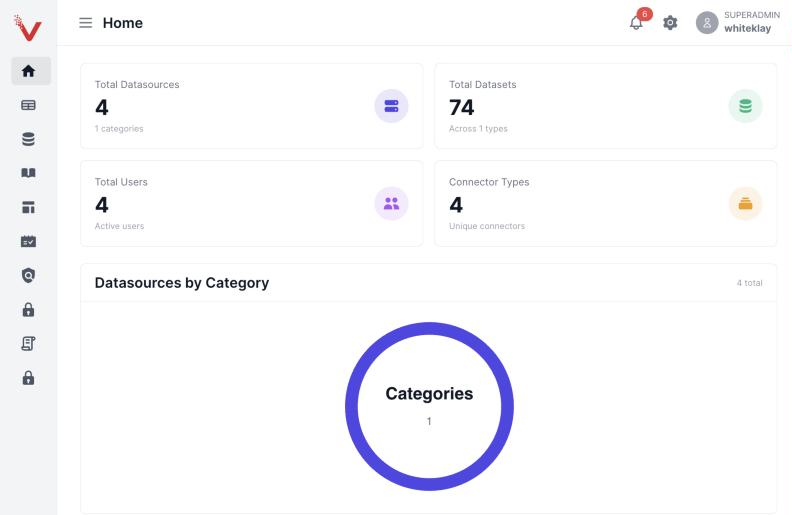
The top and sidebar navigation menus provide direct access to the core VDA modules:
- Catalog & Search: Search cross-platform assets using technical names or natural language descriptions, inspect schema definitions, column tags, and data profiling summaries.
- Text-to-SQL Studio: Formulate business questions in plain English or Arabic, inspect generated dialect-optimized SQL, preview result sets, and export interactive charts to Apache Superset.
- Lineage Explorer: Visualize table-level and column-level data flows, view upstream sources, and assess downstream impact before deploying schema changes.
- SSM Studio: Create and manage Source-to-Target Mappings, define transformation rules, map schema columns, and auto-generate data transformation queries.
- Data Quality & GX: Review profiling metrics, value distributions, uniqueness constraints, and configure automated AI Great Expectations suites.
- Access Management (PBAC): For team leads and security administrators, configure role permissions, test access rules using the Permission Simulator, and inspect denied column policies.
- API Keys & Agent Tokens: Generate personal access tokens for headless scripts, programmatic CLI access, or autonomous MCP AI agents.
3. Quick Reference Matrix
| Goal | Module | Common Actions |
|---|---|---|
| Find which table stores customer balances | Catalog & Search | Type "customer account balances" into global search; click into table details. |
| Generate monthly transaction summary query | Text-to-SQL Studio | Enter prompt: "Show monthly volume of credit transactions for Q3"; execute preview; export chart. |
Check who is affected if column TAX_ID changes |
Lineage Explorer | Select table; toggle Column Lineage; select TAX_ID; view downstream consumers. |
| Map source Oracle table to target Databricks Delta table | SSM Studio | Create new mapping; select source and target tables; map columns; generate SQL. |
| Verify if column has missing or null values | Data Quality & GX | Open table in Modern Profiling View; review nullity and distribution graphs. |
| Test if Analyst role can query transaction amounts | Access Management | Open Permission Simulator; select Analyst role; test data:query on dataset:retail_banking.transactions. |